Audio routing
An overnight cueing study can run several audio streams at once: a cue in the bedroom, white noise in the bedroom, your voice over an intercom, the participant’s voice coming back, a dream-report mic, and sometimes a light cue. These often span more than one physical device and two rooms. On Windows, the same speaker can also appear under several names, and the level that reaches the participant is the product of several controls spread across the OS.
This page describes how SMACC handles devices and routing. For the output safety cap and stimulus timing, see Volume & latency.
Equipment and actions
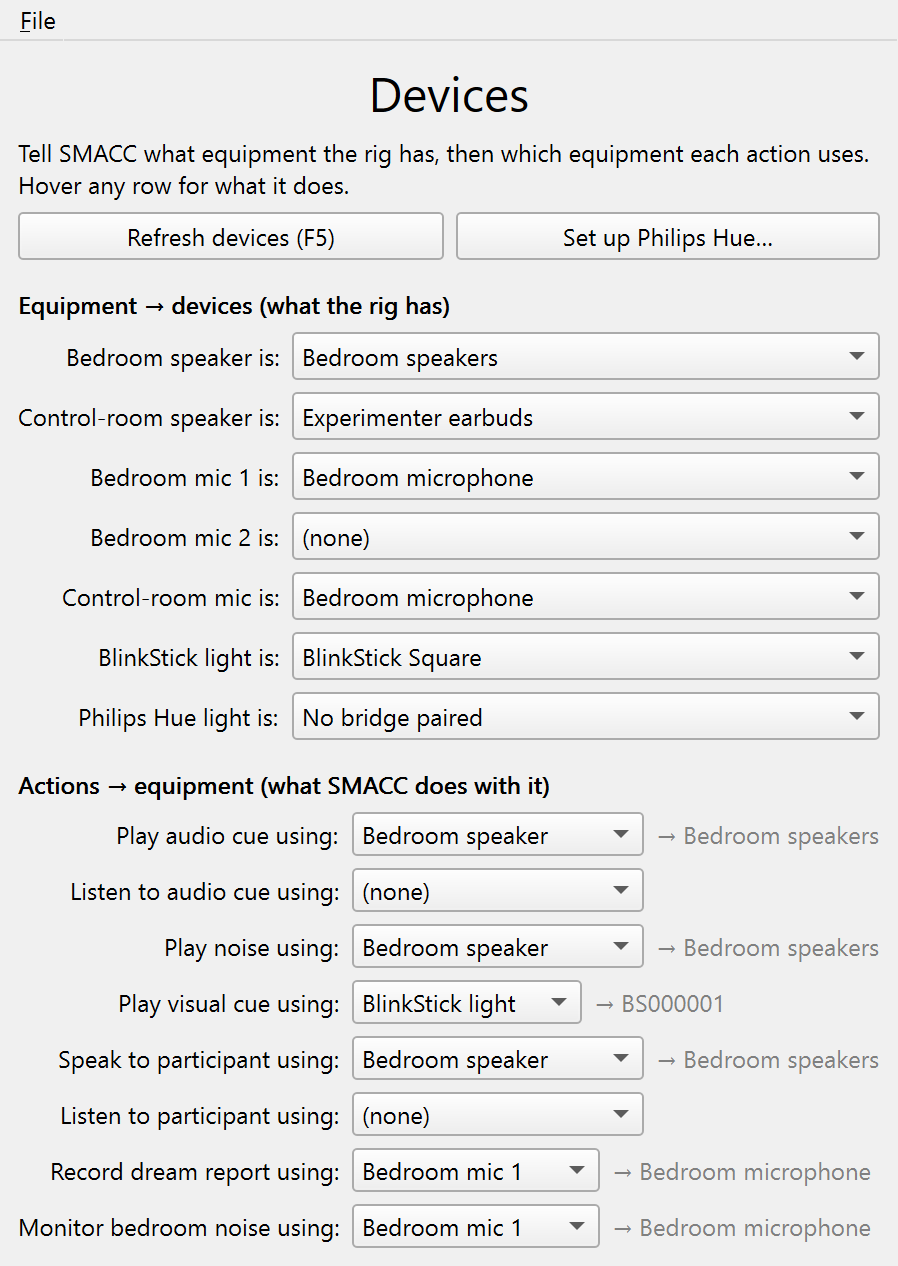
Instead of picking a device separately in every window, SMACC has one Devices window (in the Panels column) where you do two things:
- Bind each piece of equipment to a device, once. Equipment entries are the physical endpoints of a rig, named by place: Bedroom speaker, Control-room speaker, Bedroom mic 1 (and an optional Bedroom mic 2), the Control-room mic (the experimenter’s intercom voice), plus the light devices (BlinkStick light, Philips Hue light).
- Route each action to equipment. Every action names what SMACC does with a device — Play audio cue, Record dream report — and each points at a piece of equipment. Hover any row in the window for a full description.
The cue, the noise, and your intercom voice can all share the Bedroom speaker, so swapping it is one change rather than several. Every other window shows a read-only indicator of where it resolves, for example Device: Bedroom speaker → Speakers (USB Audio), and the Devices window shows the same resolution beside each route — a route pointed at equipment with nothing bound reads → no device instead of looking configured.
Bedroom speaker       Speakers (USB Audio)
Control-room speaker  Headphones (Realtek)
Bedroom mic 1         Microphone (USB Audio)
──────────────────────────────────────────
Play audio cue       → Bedroom speaker    (listen: Control-room speaker)
Play noise           → Bedroom speaker
Speak to participant → Bedroom speaker
Record dream report  → Bedroom mic 1
The whole assignment is saved in your SMACC file, so a rig travels with its study. If a bound device isn’t connected when a study loads, SMACC keeps going and reports which one is missing instead of silently falling back.
No “system default”
SMACC never routes audio to “whatever the system default is”. Windows reassigns its default device on its own — plugging in an HDMI monitor or a Bluetooth headset is enough — and an overnight study must not follow it. Instead:
- When a session starts (or loads a study) with nothing bound to the Bedroom speaker, Bedroom mic 1, or the Control-room mic, SMACC binds the device that is currently the Windows default — explicitly, by name — and logs which one it picked. From then on the binding is pinned: changing the Windows default never re-routes a study.
- Equipment with nothing bound reads (none), and anything routed to it reports a clear error instead of quietly playing somewhere else.
- If no device is connected at all, the dropdown says so (e.g. No output device found) rather than offering an empty choice.
- A bound device that isn’t currently connected shows as (not connected) and is kept — never silently swapped — until you pick another device or plug it back in (then Refresh devices (F5)).
The study editor never auto-binds: a study built on an office machine arrives at the rig with its equipment unbound, and the rig pins its own defaults on first load.
Monitoring routes
Three optional routes cover the things you reach for mid-study:
- Listen to audio cue (fan-out). Route Listen to audio cue to the control-room speaker and each cue plays in the bedroom and the control room at once, so you hear what the participant hears.
- Listen to participant. The intercom is two-way: Speak to participant sends your voice — picked up by the Control-room mic — to the participant (and is marked in the EEG record), while Listen to participant brings the participant’s mic to your control-room speaker. The intercom also has a typed text-chat mode (no audio device involved) for hearing-impaired participants.
- Monitor bedroom noise. A microphone meter in the Audio cue window that confirms a cue is audible in the bedroom (see Audio cues). It defaults to Bedroom mic 1, or bind a dedicated, more sensitive Bedroom mic 2 and route Monitor bedroom noise to it.
One audio engine
All real-time audio (cues, noise, the intercom, the dream-report recorder, and the input-level meter) runs on sounddevice (PortAudio), through the Windows WASAPI host API.
On Windows, PortAudio lists every speaker once per host API (MME, DirectSound, WASAPI, WDM-KS), which is where the “same device, several names” confusion comes from, and the legacy MME names are truncated to 31 characters. SMACC enumerates only WASAPI, so each device appears once, with its full name, on the modern low-latency path.
Because SMACC enumerates only WASAPI devices, it drops the redundant “, Windows WASAPI” suffix that PortAudio appends to each device name. With only one host API in the list, the suffix added nothing, so a device reads as Speakers (USB Audio) rather than Speakers (USB Audio), Windows WASAPI.
Because everything shares one engine, device names mean the same thing everywhere, and sending one cue to two devices at once (the fan-out) is two streams from a single source.
Hot-plug: plug a device in after SMACC is already open and it’s picked up automatically, with no restart needed. You can also force a rescan with the Refresh devices (F5) button in the Devices window.
Monitoring and volume
To confirm a cue actually reaches the bedroom, use the Audio cue window’s Monitoring meters — see Audio cues. For the output safety cap, the per-cue gains, and how the Windows volume stages combine, see Volume & latency.
Windows only
This device and volume handling is Windows-specific (WASAPI, the volume mixer), and the GUI toolkit (Qt 6) requires Windows 10 or later.