Overview
SMACC opens to its Launcher — a list of the SMACC tools. Click a tool and SMACC asks for the SMACC file to use, then opens it. To run a night you open a live Session. This page orients you; each tool then has its own page.
The Launcher’s tools (its title bar reads SMACC):
- Session… — run a live Session for collecting data, the interface for running a night. SMACC prompts for a SMACC file first.
- Editor… — create or edit a SMACC file in the Editor, without recording anything.
- Analyzer — inspect a past session.
- Audio Cue Designer — build a tone cue and export it as a WAV.
- EEG Annotator — review and annotate a recorded EEG (see EEG Annotator).
The Session and the Editor are the same window in two modes — running a night versus authoring a SMACC file.
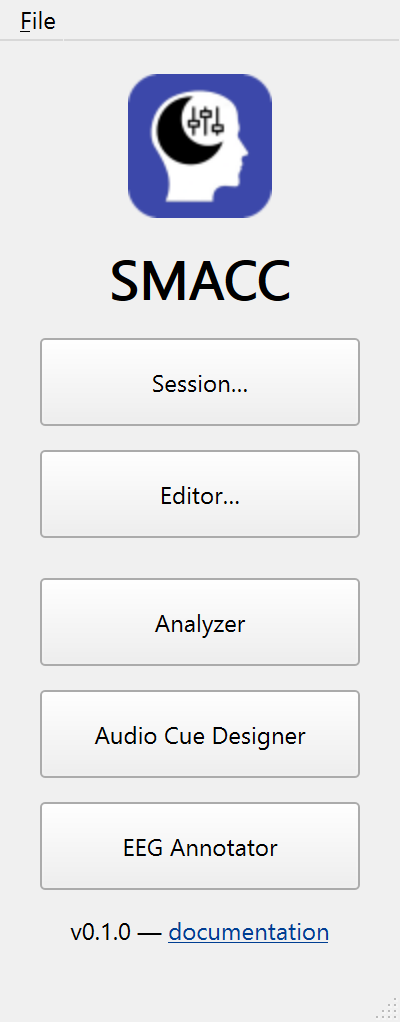
Opening SMACC
Open the app to get the Launcher. SMACC never drops straight into a session; the one exception is double-clicking a .smacc file, which opens the Start a session dialog with that file preselected. From the Launcher:
- Session… — opens the Start a session dialog. Pick the SMACC file (the picker lists recent files, the seeded
default, and Browse… for any other), confirm the optional subject/session/notes, and click OK to start. Runs are written to that file’s data directory; the run folder and log are created only when the session starts. (See SMACC files for what a SMACC file holds.) - Editor… — opens the Open in the Editor dialog. Choose New SMACC file for a blank configuration, or an existing file (recents / Browse…) to edit. The Editor configures the panels (cues, noise, visual, markers, surveys), sets a data directory, and saves with Save SMACC file as…; it never records a run.
- Analyzer — open a past session (a
.log, a session folder, or a zipped session) to see a summary (events, duration, subject/session, dream reports), export its events to a BIDSevents.tsv, or recover its settings to a.smacc— all without starting a new session. - Audio Cue Designer — open the standalone tool to build a simple tone cue and export it as a WAV into a study’s
cues/folder (see Audio cues). - EEG Annotator — open the post-hoc EEG Annotator to review a recorded night and place annotations. It runs as its own window and process, so it stays available while a session runs.
Closing the Editor or a standalone tool returns you to the Launcher. Ending a Session quits SMACC entirely — the night is over. Closing the Launcher also quits SMACC.
The Session window
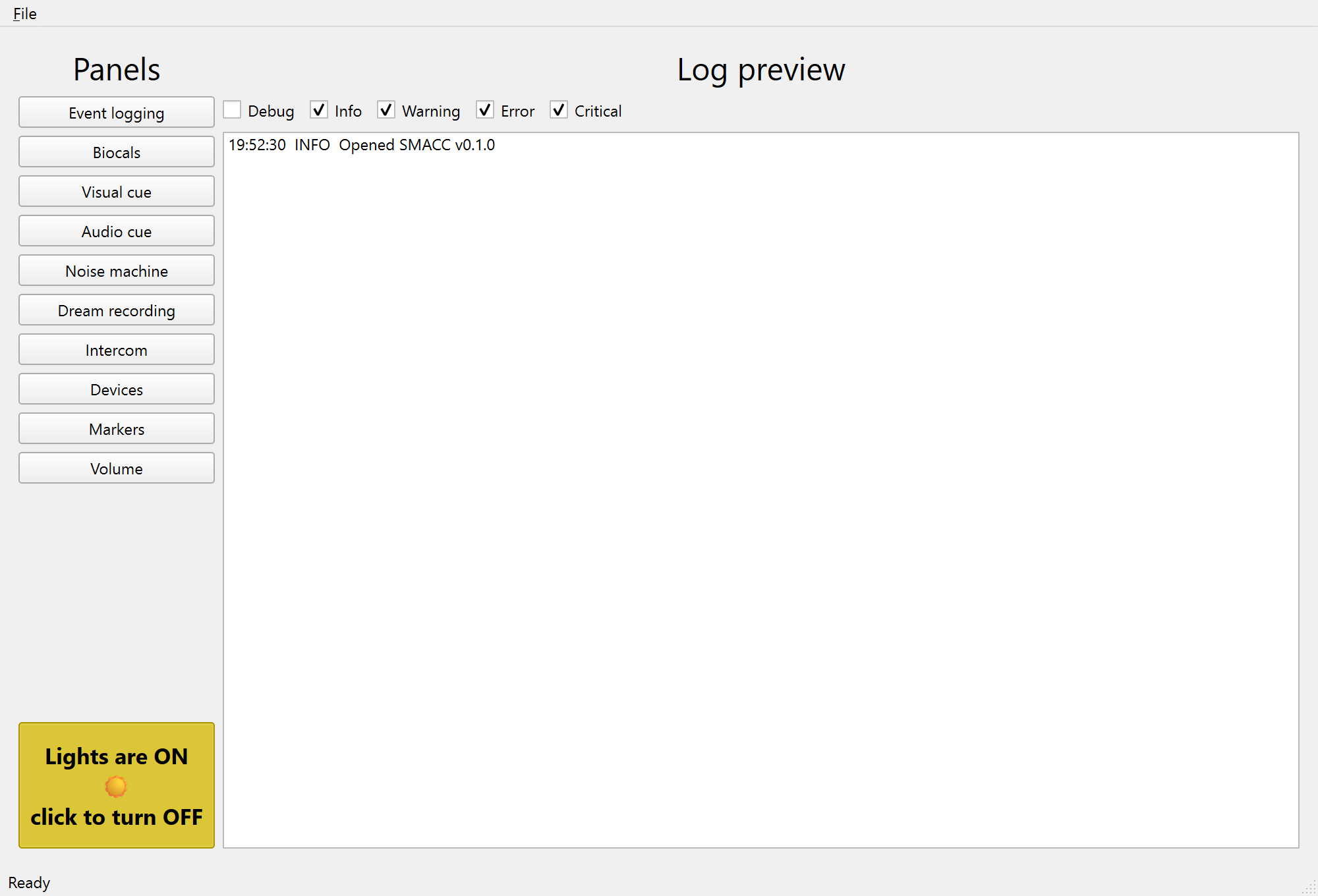
A running Session has two columns. The Panels column on the left opens each tool window (Audio cue, Visual cue, Noise machine, Dream recording, Intercom, Biocals, Markers, Event logging, Devices, Volume). The right side is the live Log preview, with checkboxes to choose which log levels it shows. The Lights toggle on the main window dims the room (and flips the app’s dark theme).
Tool windows close with Ctrl+W (or File › Close window), which only hides the window with its state intact; the session keeps running and the Panels column reopens it.
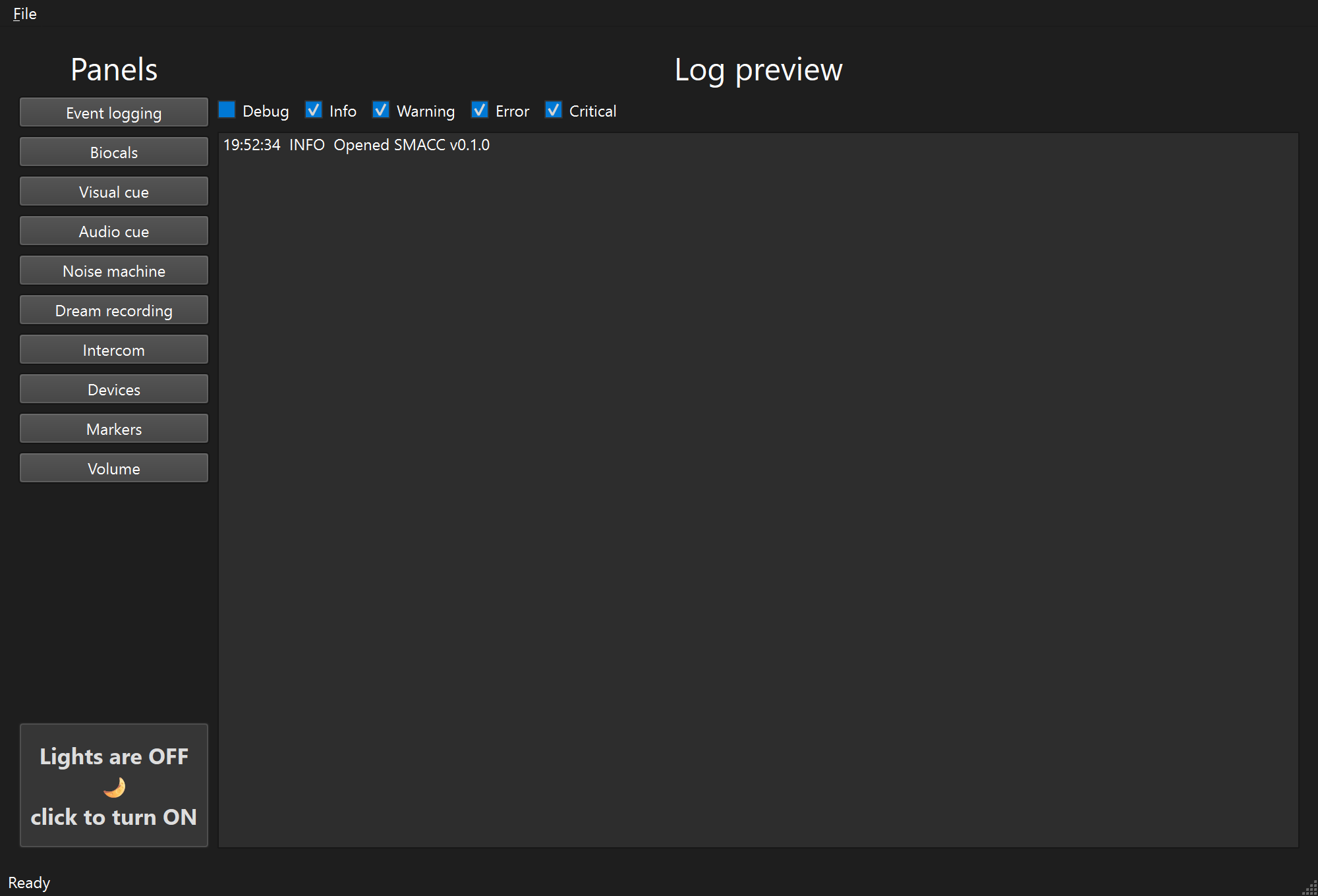
Flip Lights off and the whole app switches to a dark theme for the night — the same window, dimmed for a dark control room:
The tools
Each tool has its own page:
- Audio cues — the cue board, the Audio Cue Designer, background noise, and confirming a cue reaches the bedroom.
- Visual cues — light cues on a BlinkStick or Philips Hue.
- Biocals — timed, marked biocalibration tasks.
- Dream reports & surveys — record a report and administer a survey.
- Intercom & chat — talk, listen, and a typed channel.
- Markers & port codes — the Markers window, the Event logging panel, and EEG triggers.
- Audio routing and Devices — bind equipment and route actions to it.
- Volume & latency — the output safety cap and stimulus timing.
Event log
Every run writes a detailed .log to its own timestamped folder under the SMACC file’s data directory (for example ~/SMACC/data/), capturing the events and settings for that session. Open one later from the Launcher’s Analyzer to see a summary, export its events to BIDS, or recover its settings. For the line format and levels, see the session log reference. If SMACC crashes, see Troubleshooting.
Display preferences
Some display choices apply to a session and travel with the study in the SMACC file: always-on-top (toggled per window — the Session window’s File menu, each tool window’s File menu, or Ctrl+T in whichever window is active) and which log levels show in the preview (the checkboxes above the log preview). Save them with the rest of the configuration from the Editor, or with File › Save SMACC file as… in a Session.
Separately, the machine remembers window positions and sizes and your recent files in ~/SMACC/preferences.yaml, restored on the next launch (see the preferences reference).
SMACC files
A SMACC file captures your study’s whole configuration — cue files, volumes, noise, visual cues, survey presets, event markers, display choices, and the data directory where runs are written — in a single portable .smacc. See SMACC files for the full story, and the SMACC file reference for the on-disk format.