SMACC files
A SMACC file (.smacc) is the study’s configuration: cue files, volumes, noise, visual cues, biocals, survey presets, event markers, the display choices that apply to a session (always-on-top and log-preview levels), and the data directory where runs are written. It plays the same role for a SMACC study that a montage file plays for an EEG setup — configure it once, then reuse it session after session.
A SMACC file is not a session file. It is not tied to any particular run: opening one starts a new session with that configuration, and you can start as many sessions from the same file as you like. Sessions never rewrite the SMACC file they were started from — what happened in a run is recorded in that run’s session log, not in the SMACC file.
It is a single, portable file (plain YAML you can read and edit). Cue/noise files and the data directory are stored relative to the SMACC file when they sit beside it — so a self-contained study folder stays valid if you move, copy, or zip it — and absolute when they point elsewhere. For the exact on-disk format, see the SMACC file reference.
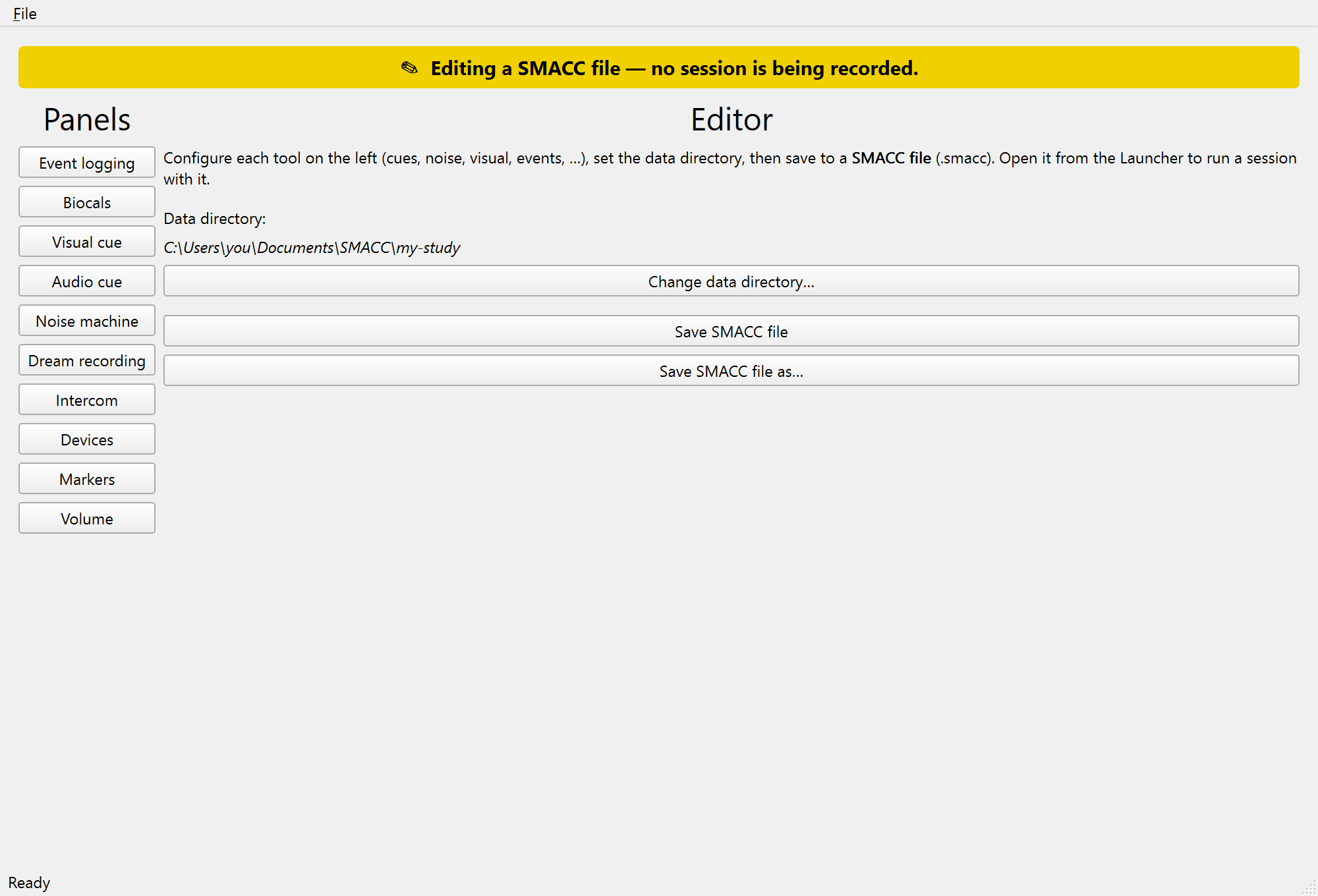
Creating a SMACC file
There are two ways to make one:
- From scratch, in the Editor. In the Launcher, click Editor…. In the dialog, choose New SMACC file for a blank configuration (or pick an existing file to edit). Configure each panel on the left, set the data directory, and Save SMACC file as… to a new
.smaccanywhere you like. The Editor never records a run — it only authors configuration. - From a live session. In a running Session, use File › Save SMACC file as… to snapshot the session’s current settings — including any mid-session tweaks (volumes, device routing, event-code edits) — to a new SMACC file. Handy when you’ve tuned things live and want tonight’s setup to be tomorrow’s starting point.
SMACC ships a default.smacc in your SMACC directory as a working example. It is treated as a read-only template — saving over it redirects to Save-As — so there is always a known-good configuration to fall back on.
You can keep SMACC files anywhere: for instance one per participant (peter.smacc, paul.smacc, …) or one per protocol, each pointing at whatever data directory you like (they can share one).
The data directory
Every SMACC file names a data directory — where its runs are written. Each session started from the file gets its own timestamped folder under that directory (e.g. smacc-20260607-223015/) holding the run’s .log, dream-report recordings, survey responses, and any exports. Set it in the Editor (Change data directory…); choose it deliberately, since it determines where a night’s data ends up.
Opening a SMACC file
Opening a SMACC file starts a new session configured by it:
- Double-click the file (Windows build): SMACC opens the Start a session dialog with that file preselected, so you confirm the subject/session and click OK to start. Enable or repair the file association any time from File › Associate .smacc files (Windows) in the Launcher.
- From the Launcher: click Session…, then pick the file in the Start a session dialog (recent files are listed; Browse… finds any other) and click OK.
- From a terminal:
SMACC path/to/file.smacc.