Intercom & chat
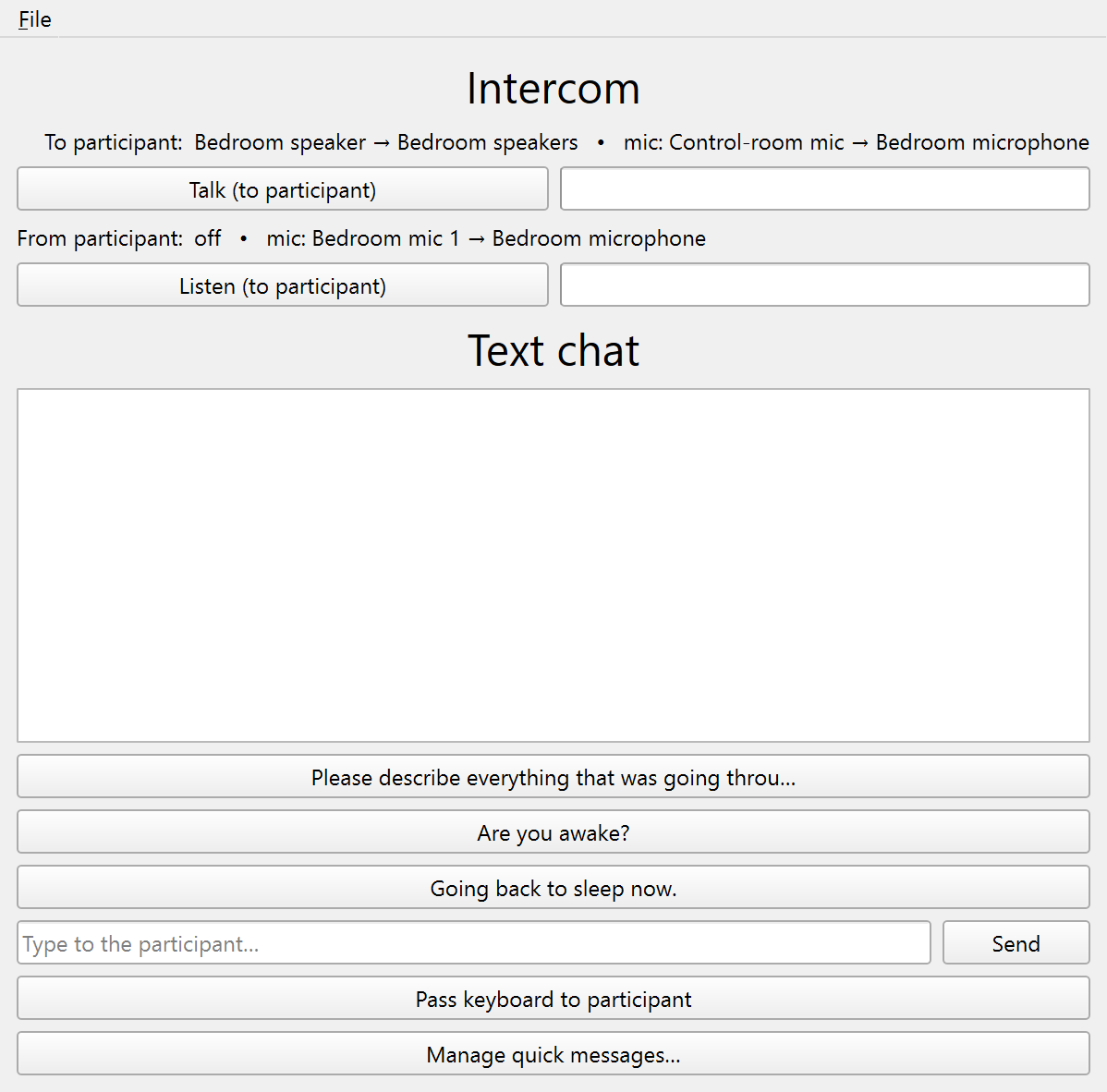
The Intercom window (in the Panels column) is the live channel between the control room and the bedroom. It carries voice both ways, plus a typed text channel for when audio would intrude.
Voice
- Talk (to participant) pipes the control-room mic to the participant’s output. Click to latch, or hold the spacebar anywhere in SMACC for push-to-talk. Talking is marked in the EEG record.
- Listen (to participant) brings the bedroom mic to your control-room speakers. It is unmarked.
Both directions route through equipment set once in the Devices window (see Audio routing). A level meter beside each button shows the live input level while that direction is on, so signal on the bar means audio is actually flowing (your mic for Talk, the participant’s mic for Listen) rather than just a latched button.
Text chat
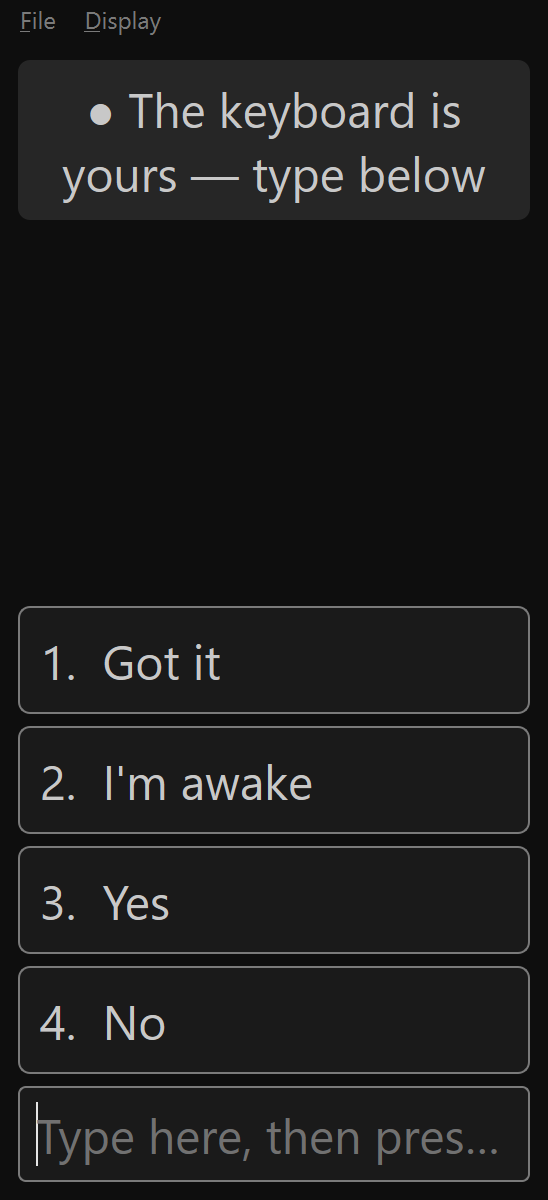
Below the voice controls is a typed channel, for hearing-impaired participants, or whenever audio would intrude or you want the exchange in writing. You type in the Intercom panel; the participant reads and replies in a separate Participant chat window built for a dark bedroom: always dark regardless of the lights toggle, large text (default 18 pt, resize with Ctrl+= / Ctrl+-), and an optional red night text mode (Display menu), with no flashing and no sounds.
Setup. The first cut assumes one computer: extend the desktop onto a bedroom-facing monitor and plug in a second keyboard for the participant. Click Pass keyboard to participant to open the participant window, drag it onto the bedroom display once, and it reopens there next session.
One keyboard at a time. Windows gives the machine a single input focus, so the two keyboards type into whichever window is active; text chat is half-duplex, like push-to-talk. Pass keyboard to participant (or Ctrl+Enter, which sends your message first) activates the participant window so their keystrokes land there. Clicking back into SMACC takes focus back. The participant window shows a banner, “● The keyboard is yours” or “○ Waiting”, so a drowsy participant always knows whether typing will land.
Quick replies. Canned messages save both sides from typing a full sentence at 3 a.m., and they travel with the study. Click Manage quick messages… on the Intercom panel to edit two lists: experimenter prompts (one click sends a standardized prompt, such as the lab’s dream-report question or “Are you awake?”) and participant replies mapped to the number keys 1–9 (for example “Got it”, “I’m awake”, “Yes”, “No”). The participant’s replies appear as large numbered chips; pressing a number sends that reply, but only while their entry box is empty, so a typed reply that contains digits still works. A sent preset is logged and marked exactly like a typed message.
What’s recorded. Every message is written verbatim to the session log as a DEBUG line (tick Debug above the log preview to watch the exchange live). By default no port codes fire and nothing reaches the BIDS events export: a typed exchange is rapid and conversational, and would flood the marker channel. If a study needs marker timestamps, route Chat to participant (code 69) and Chat from participant (code 70) to LSL/TTL in the Markers window (see Markers & port codes). The markers stay bare, without the message text, so the trigger channel stays legible.