Dream reports & surveys
After an awakening the participant gives a dream report: recorded audio, often followed by a questionnaire. SMACC records the audio and can open a survey alongside it.
Recording a dream report
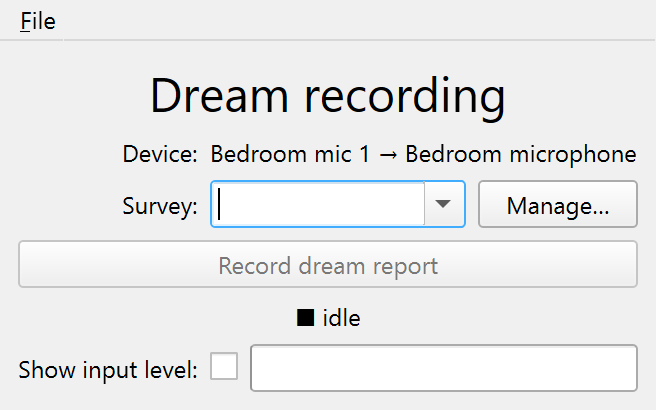
Use the Record dream report button (in the Dream recording panel) to record from the mic bound to the Bedroom mic 1 equipment in the Devices window. Recordings are saved into the current session folder as report-NN.wav. Each report is stamped with the time elapsed since you pressed Start recording (in the Event logging panel), so it is easy to locate in the EEG file. If recording has not been marked yet, the report is still logged and SMACC reminds you to mark it.
Surveys
A dream report is often followed by a questionnaire: how lucid was the dream, what did it contain, how confident is the participant. SMACC handles these two ways:
- In-app surveys render in a SMACC window and save their responses straight into the run folder, next to the dream-report WAV they accompany. SMACC ships the standard lucid-dreaming instruments, and you can build your own.
- Web surveys (for example a questionnaire hosted on Qualtrics or REDCap) open in the browser; add them by URL.
In-app surveys exist because the night shift is a bad place for a hosted form: sleep labs are often offline, response data belongs with the night’s recording rather than a third-party account, and overnight questionnaires are frequently administered verbally over the intercom, with the participant in bed in the dark while the experimenter reads the items and records the answers. The survey window is non-modal for the same reason, so the intercom stays reachable while it is open.
Built-in surveys
SMACC bundles standard instruments from the dream and mindfulness literatures (where a survey’s definition carries a citation, it is shown at the top of its window):
Dreaming & lucidity
| Survey | Full name |
|---|---|
| DLQ | Dream Lucidity Questionnaire |
| LuCiD | Lucidity and Consciousness in Dreams scale |
| LUSK | Lucid Dreaming Skills Questionnaire |
| MUSK | Morning Lucid Dreaming Skills Questionnaire |
| BLA | Baseline Lucidity Assessment |
| MLA | Morning Lucidity Assessment |
Dream traits / intake
| Survey | Full name |
|---|---|
| MADRE | Mannheim Dream Questionnaire |
MADRE is a trait/intake questionnaire (dream-recall habits, attitudes, age, occupation), administered once at session setup rather than after each awakening — open it standalone from File › Surveys. It mixes response types (dropdowns, number and text entry, and a rating matrix), which is what motivated the typed items described under Building your own.
Mindfulness
| Survey | Full name |
|---|---|
| CAMSR | Cognitive and Affective Mindfulness Scale - Revised |
| FFMQ | Five Facet Mindfulness Questionnaire |
| FMI | Freiburg Mindfulness Inventory |
| KIMS | Kentucky Inventory of Mindfulness Skills |
| MAAS | Mindfulness Attention Awareness Scale |
| MACE | Metacognition, Affect, Cognitive Experiences Questionnaire |
| PHLMS | Philadelphia Mindfulness Scale |
| SMAAS | State Mindfulness Attention Awareness Scale |
| SMS | State Mindfulness Scale |
| TMS | Toronto Mindfulness Scale |
Built-ins ship with SMACC itself (they are not stored in your .smacc study file), so updates reach every install. Each survey definition carries a content version that is recorded in every response file — an analysis can always tell which wording a given night used.
Using a survey
The survey dropdown in the Dream recording panel lists the in-app surveys first, then your saved web URLs. Pick one to open it automatically when a dream report starts recording; that administration is attached to the report, and its response file is named after it. Any survey can also be opened standalone from File › Surveys.
Every open logs a SurveyOpened event. Submitting an in-app survey writes the response file and logs a SurveySubmitted event (code 71) — log-only by default, since the survey happens after the awakening; tick its LSL/TTL boxes in the Markers window if your protocol wants it in the trigger channel.
In the Editor (and the read-only previews in the Manage dialog) a survey renders but cannot be submitted — there is no run folder to save into.
Response files
One JSON file per administration, in the run folder:
report-02-survey-dlq.json— auto-opened with dream report 2 (sorts besidereport-02.wav).survey-01-lusk.json— opened standalone; standalone administrations are numbered in their own sequence.
The payload records the SMACC version, the survey’s key, name, title, and content version, the optional subject/session metadata, opened/submitted timestamps, the time since the Start recording marker (like the dream-report stamp), the linked report number (or null), the shared scale with its anchors, one {item, type, response, label} entry per responding item, and any free-text notes. The response is the chosen value (or null for unanswered — submitting warns first); label is its human reading (the Likert anchor or the chosen dropdown option). Display-only headings collect nothing and are omitted:
{
  "kind": "smacc/survey-response",
  "smacc_version": "0.1.0",
  "survey": {"key": "dlq", "name": "DLQ", "version": "1.0", "builtin": true, "...": "..."},
  "report_number": 2,
  "time_since_recording_start": "02:14:09",
  "responses": [
    {"item": "…", "type": "likert", "response": 3, "label": "…"}
  ]
}
Scoring is deliberately left to analysis: SMACC records raw per-item responses only, so scoring conventions can never silently drift between studies.
Building your own
The Manage… button next to the survey dropdown manages all three kinds of entries: view a built-in, build/edit/remove your own, or add a web URL.
Build survey… creates a custom in-app survey: a name, optional title/citation/instructions, one shared rating scale (its range plus an optional anchor label per point), and the items, one per line. That single-scale shape is deliberate — it matches the bundled instruments and keeps definitions simple. Custom surveys are saved as YAML files in your SMACC folder’s surveys/ directory (~/SMACC/surveys/ by default) — not in the .smacc study file — and load alongside the built-ins on every launch. Bump the Version field whenever you change the items.
The files are hand-editable (same format as the bundled ones):
kind: smacc/survey
schema_version: 1
key: my-survey          # stable id; names the response files
name: MySurvey          # short label shown in the dropdown
title: My Survey's Full Title
version: "1.0"          # recorded in every response
citation: ""
instructions: "Rate each statement about the dream you just reported."
scale:
  min: 0
  max: 4
  anchors: [Not at all, Just a little, Moderately, Pretty much, Very much]
items:
  - I was aware that I was dreaming.
  - ...
Item types
A bare-string item is a Likert item rated against the survey’s shared scale — the original shape, and all the builder produces. Definition files can also mix in other item types by writing an item as a mapping with a type:
type |
Renders as | Extra fields |
|---|---|---|
likert (default) |
radio matrix on the shared scale |
— |
select |
dropdown | levels (a value: label mapping) |
number |
number entry (blank = unanswered) | min, max, unit (all optional) |
text |
single-line text entry | — |
heading |
a bold section title (collects no response) | — |
Any item may carry a help: line, shown under it (used for the definitions in MADRE). Consecutive Likert items collapse into one shared matrix; other types render as their own rows. The simple Build survey… dialog only authors plain Likert surveys; a survey with typed items is edited as a file (the dialog says so and points at the path). For a full worked example, see the bundled madre.yaml.
kind: smacc/survey
schema_version: 1
key: intake
name: Intake
title: Session intake
scale: {min: 0, max: 4, anchors: [Not at all, "", "", "", Totally]}
items:
  - text: Age
    type: number
    min: 0
    max: 120
    unit: years
  - text: How often do you recall your dreams?
    type: select
    levels: {0: Never, 1: Sometimes, 2: Often}
  - text: Attitude towards dreams        # a section title
    type: heading
  - I think that dreams are meaningful.  # a Likert item on the shared scale
Web survey URLs, by contrast, are saved in the .smacc study file (survey_options) and travel with the study — see the settings-file reference.